
USR Publish help
USR Publish turns your news into drafts for your blog, LinkedIn, Instagram, YouTube, WhatsApp, in-app notes and newsletter. You choose who writes the drafts and which posts go out on their own and which wait for your approval. It then shows what each post earned in views, clicks and sign-ups.
See the screens
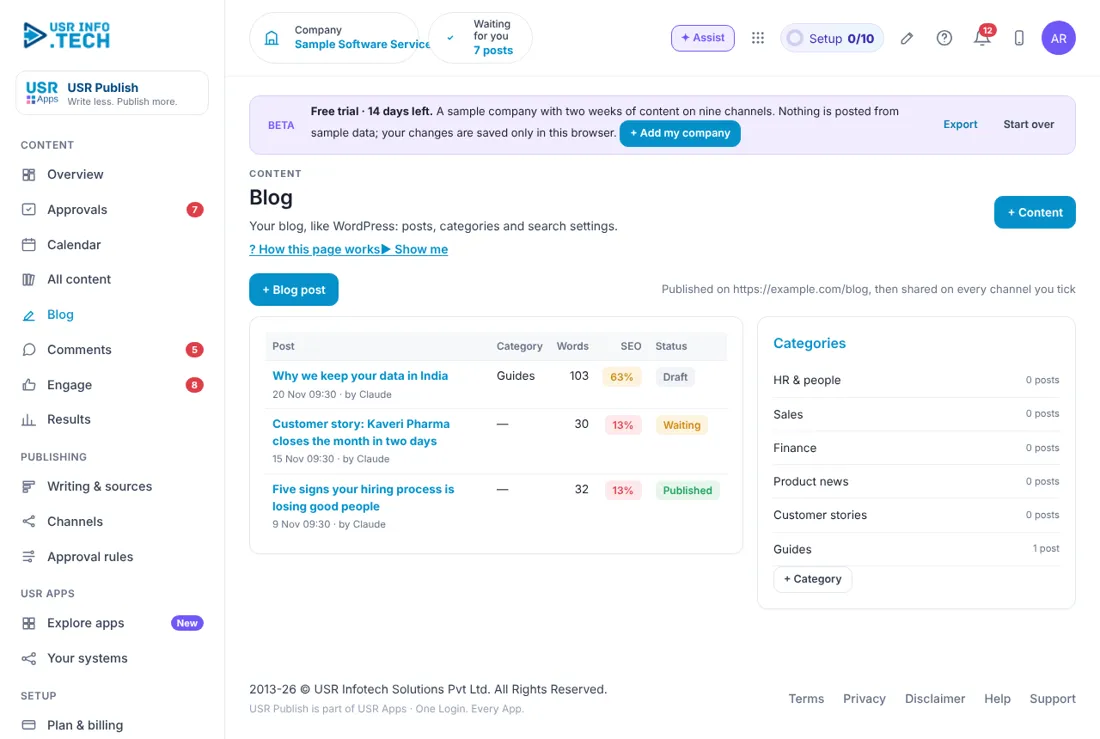
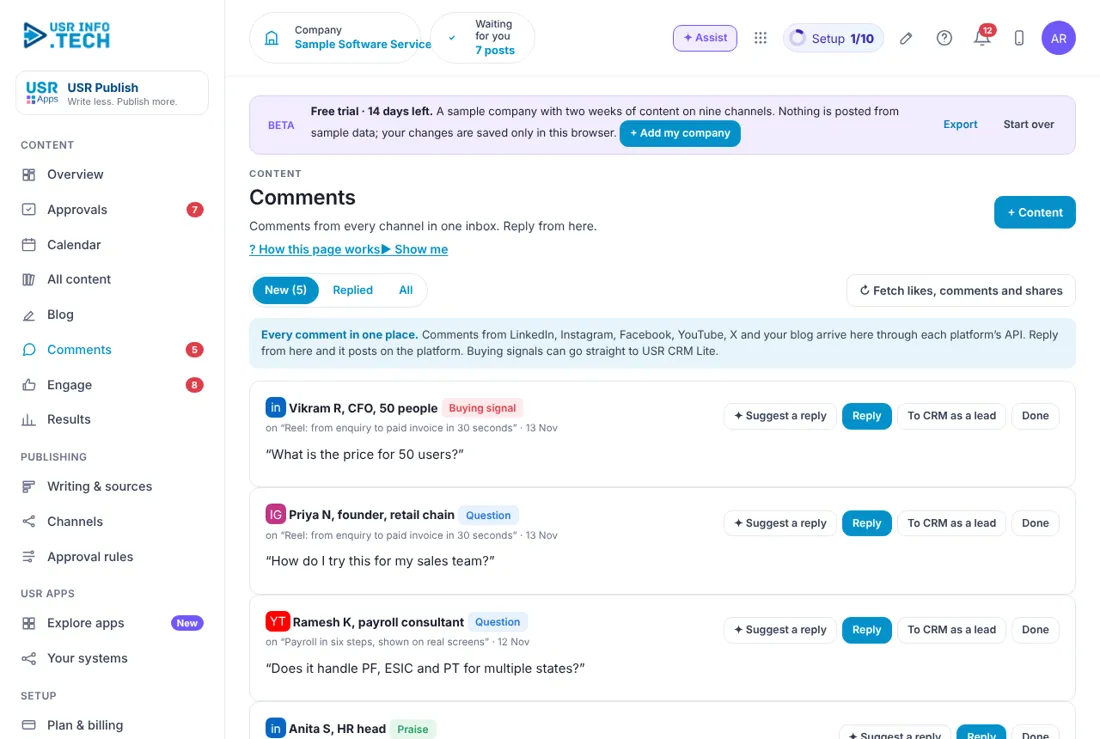
Sample company data. Screens can change as the app improves; the steps stay the same.
Welcome to USR Publish
USR Publish turns your news into drafts for your blog, LinkedIn, Instagram, YouTube, WhatsApp, in-app notes and newsletter. You choose who writes the drafts and which posts go out on their own and which wait for your approval. It then shows what each post earned in views, clicks and sign-ups.
OUR USP: One sign-in, one record, one bill. USR Publish is part of USR One, so your people, customers and numbers are never typed twice. AI helps in every app through USR Assist, and AI never takes a decision for you. ISO 27001, ISO 42001 and DPDP Ready.
- Drafts made from your news: new tutorials, releases, customer stories and events
- Three ways to write: you, automatic templates, or Claude
- Approval queue you can use from your phone
- Brand checks that hold risky posts for a person
- Comments from every channel in one place, with suggested replies
- Results: views, likes, clicks and sign-ups by channel
USR ONE: USR Publish takes customer stories from USR CRM Lite, event invitations from USR Webinars & Events and tutorials from USR Learn, sends buying signals from comments to USR CRM Lite and shows in-app notes through USR Notify.
A year in USR Publish
Content needs a steady rhythm. This is how a year looks in USR Publish.
| When | What happens | Who |
|---|---|---|
| At the start of the year | Connect your channels and set the approval rules and brand checks. | Marketing head |
| Every morning | Open Approvals and approve or edit what is waiting. | Marketing |
| Every day | Answer new comments. Spend 10 minutes on Engage. | Marketing |
| Every week | Plan next week with Claude and check the Calendar. | Marketing |
| Every month | Read Results: which posts brought sign-ups. | Marketing head |
| When something is new | Check Writing & sources so the news becomes drafts. | Marketing |
Key ideas in simple words
CONCEPT: Source. Where news comes from, such as new tutorials, release notes or customer stories.
CONCEPT: Draft. A post written for a channel from the news.
CONCEPT: Channel. A place you publish: blog, LinkedIn, Instagram, YouTube, X, Facebook, WhatsApp, in-app or newsletter.
CONCEPT: Approval rule. Decides if a post goes out by itself or waits for you.
CONCEPT: Brand check. A rule that holds risky wording for a person.
CONCEPT: Tracked link. A link that counts sign-ups from each post.
CONCEPT: Engage. Posts from other people that are worth a comment, with a draft in your voice.
CONCEPT: Buying signal. A comment that shows interest to buy.
Write once, reach many
One piece of news, such as a new tutorial, becomes a blog post, a LinkedIn post, a short video and an in-app note. You do not write five times. You check, approve and let it go.
You stay in control
For each channel and type of content you choose: I approve each post, or Publish automatically. Anything that fails a brand check waits for a person, whatever the switches say. One switch pauses all publishing.
Measure what brings people
Every post carries a tracked link. Results shows which channel and which post brought sign-ups, so you do more of what works.
What each role sees
| Role | What you do and see |
|---|---|
| Marketing | Content, Approvals, Calendar, Comments, Engage and Results. |
| Marketing head | Also Writing & sources, Channels and Approval rules. |
| Sales | Comments that are buying signals, sent to USR CRM Lite. |
HR and admin guide: features step by step
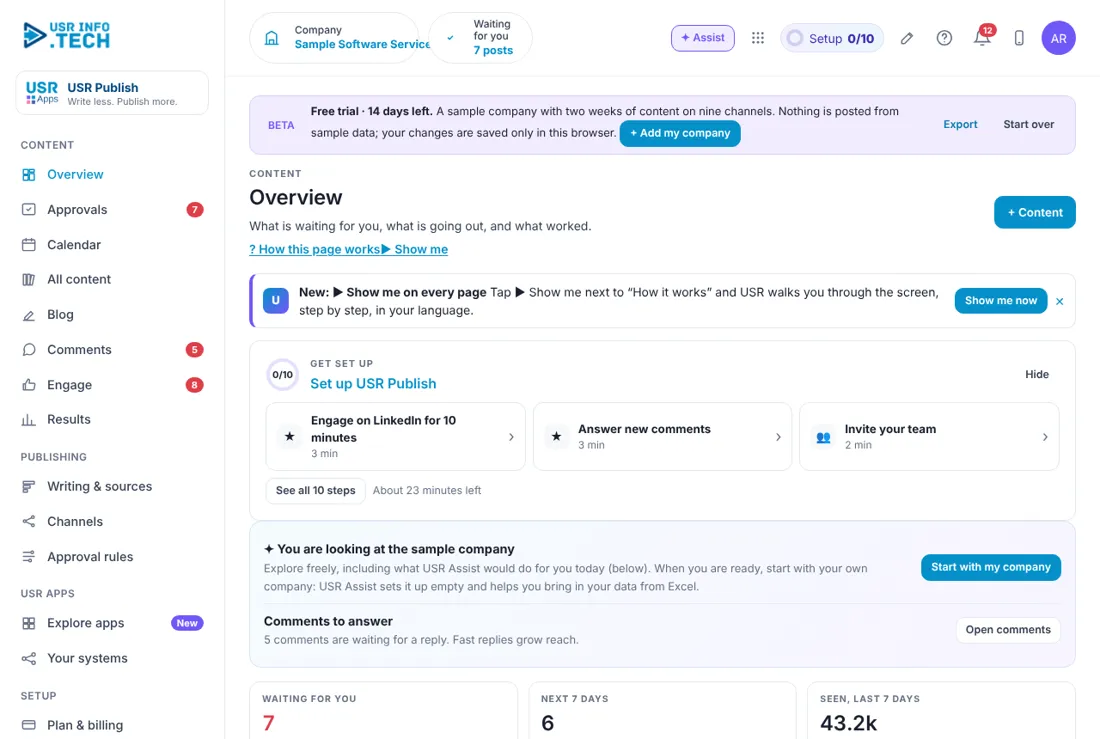
5.1 Overview
What it is: Overview shows what waits for you and how your content did.
#### How to do it
- Open Overview.
- Click Approve on a post, or Open to read it first.
#### Fields and buttons
| Field or button | What it is for |
|---|---|
| Waiting for you | Posts to approve. |
| Next 7 days | Posts planned. |
| Seen, last 7 days | Views across all channels. |
| Clicks | Clicks to your site, and the share of views. |
| Sign-ups from content | Sign-ups tracked by a link. |
| Comments to answer | Comments from every channel. |
| Channels | How many are connected and how many publish automatically. |
| Waiting for your approval | Each post with Approve and Open. |
| Best performers | The posts with the most sign-ups. |
| Plan next week with Claude | Claude plans the posts for next week. |
TIP: Clear the approvals first thing in the morning.
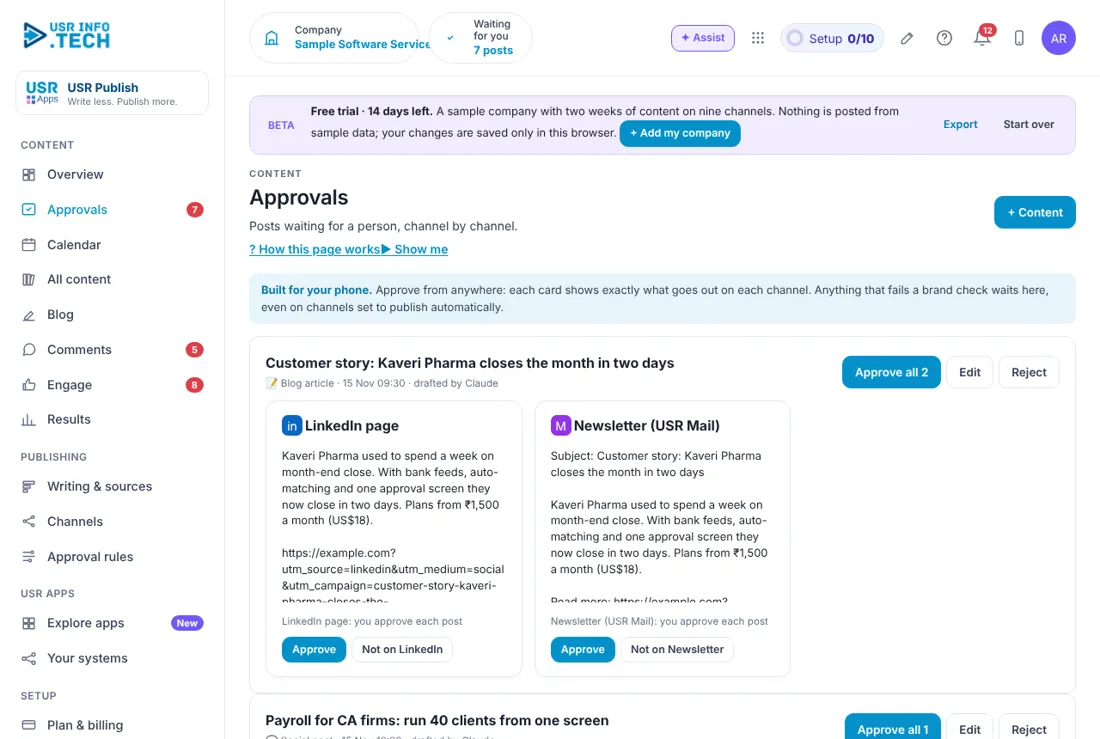
5.2 Approvals
What it is: Approvals shows exactly what will go out on each channel, so you can approve from your phone.
#### How to do it
- Open Approvals.
- Read each channel box.
- Click Approve all, or approve channel by channel.
#### Fields and buttons
| Field or button | What it is for |
|---|---|
| Post card | Title, type, date and who drafted it. |
| Channel boxes | The words for each channel, such as LinkedIn page or Newsletter. |
| Approve | Approves that channel only. |
| Not on this channel | Leaves the channel out. |
| Approve all | Approves every channel for that post. |
| Edit and Reject | Change the words, or stop the post. |
WATCH OUT: A post that fails a brand check waits here, even on a channel set to publish automatically.
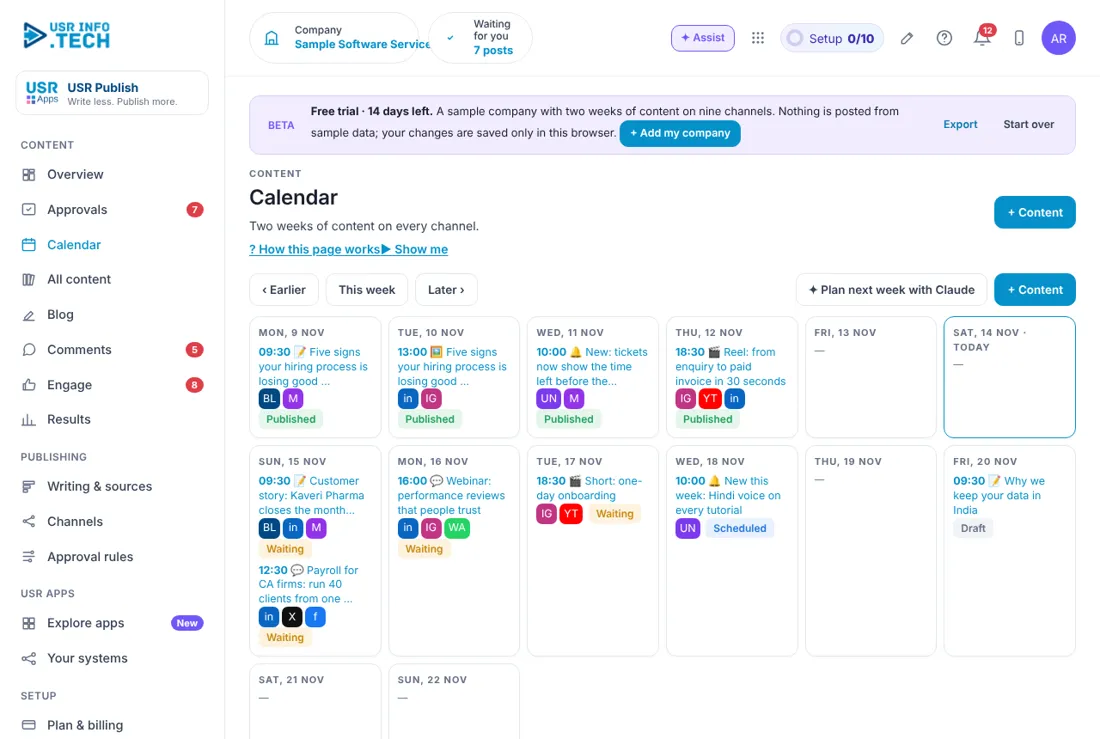
5.3 Calendar
What it is: Calendar shows every planned post for each day, with its channels and status.
#### How to do it
- Open Calendar.
- Click a post to open it.
#### Fields and buttons
| Field or button | What it is for |
|---|---|
| Day columns | Posts for each day, with the time. |
| Channel icons | Where each post goes. |
| Waiting | Needs approval. |
| Scheduled | Will go out at the planned time. |
| Earlier, This week, Later | Move through the weeks. |
| Plan next week with Claude | Claude fills next week. |
TIP: Keep one or two posts a day on LinkedIn.
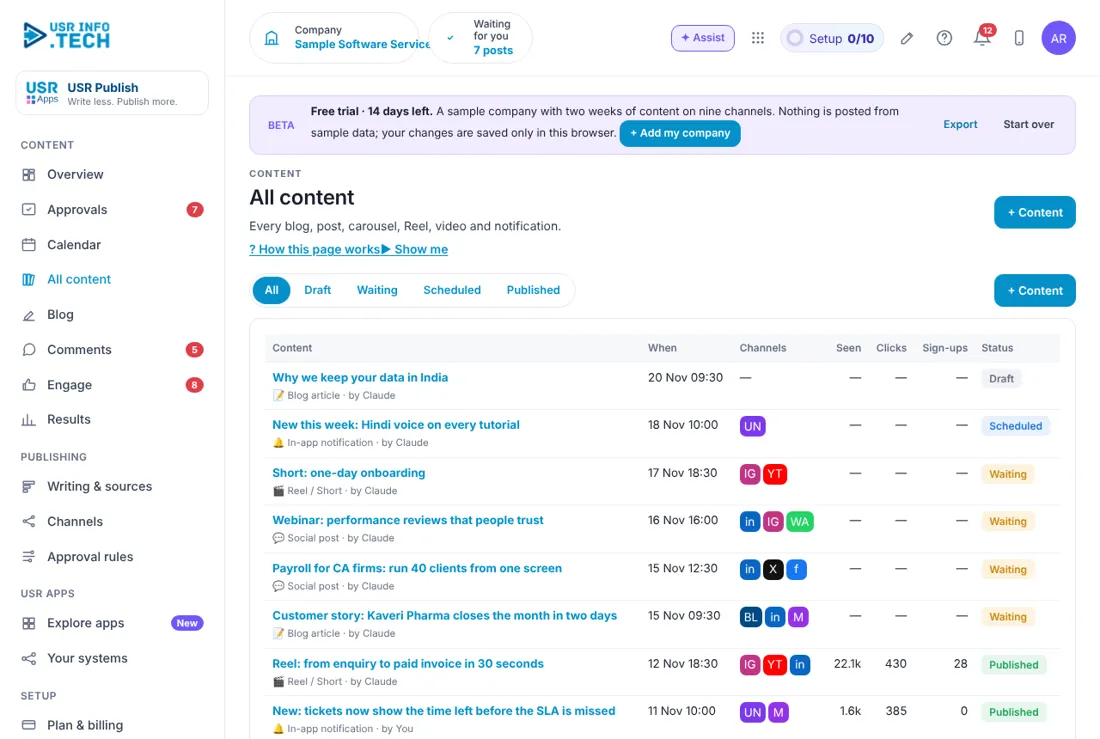
5.4 All content
What it is: All content lists every piece with its date, channels and numbers.
#### How to do it
- Open All content.
- Click a tab to filter.
- Click a title to open it.
#### Fields and buttons
| Field or button | What it is for |
|---|---|
| Tabs | All, Draft, Waiting, Scheduled and Published. |
| Content | Title, type and who made it. |
| When | Date and time. |
| Channels | Where it goes. |
| Seen, Clicks, Sign-ups | Results once published. |
| Status | Draft, Waiting, Scheduled or Published. |
| + Content | Adds a new piece. |
5.5 Blog
What it is: Blog lists your articles with a word count and an SEO score, then shares them on the channels you tick.
#### How to do it
- Open Blog.
- Click + Blog post.
- Write or ask Claude for a draft.
#### Fields and buttons
| Field or button | What it is for |
|---|---|
| Post | Title, date and author. |
| Category | Such as Guides. |
| Words | The length. |
| SEO | A score for search; green is good. |
| Status | Draft, Waiting or Published. |
| Categories | Add a category with + Category. |
| + Blog post | Writes a new article. |
TIP: Aim for a green SEO score before you approve.
5.6 Comments
What it is: Comments brings every comment from every channel into one place. Reply from here and it posts on the platform.
#### How to do it
- Open Comments.
- Click Suggest a reply, edit it and click Reply.
- Click To CRM as a lead for a buying signal.
#### Fields and buttons
| Field or button | What it is for |
|---|---|
| Tabs | New, Replied and All. |
| Commenter | Name, role and a tag such as Buying signal, Question, Praise or Complaint. |
| Suggest a reply | Claude writes a reply for you. |
| Reply | Posts your reply on the platform. |
| To CRM as a lead | Sends a buying signal to USR CRM Lite. |
| Done | Closes the comment. |
| Fetch likes, comments and shares | Brings the latest from every platform. |
TIP: Fast replies grow reach. Answer buying signals first.
5.7 Engage
What it is: Engage gives you the best posts from other people to comment on, with a comment drafted in your voice. It is your 10 minutes a day on LinkedIn.
#### How to do it
- Open Engage.
- Click Open on LinkedIn.
- Like the post, paste the comment and tick I liked it and I commented.
#### Fields and buttons
| Field or button | What it is for |
|---|---|
| Today | Posts worth your attention. |
| Engaged this week | How many comments you made. |
| Mentions answered by the page | Mentions liked by your page automatically. |
| Leads from engagement | Leads sent to USR CRM Lite. |
| Tabs | New, Done, Skipped and All. |
| Open on LinkedIn | Opens the post. You like it and paste the comment yourself. |
| Your comment | A draft in your voice: specific, no selling, no links. |
| To CRM | Sends the person to USR CRM Lite. |
| + Add a post link | Adds any post you want to comment on. |
| What to look for | Topics, posts per day and where posts come from. |
WATCH OUT: USR Publish never clicks Like or posts on your personal profile, because LinkedIn does not allow automated activity on personal accounts.
5.8 Results
What it is: Results shows what each channel and each post earned.
#### How to do it
- Open Results.
- Click Fetch latest from every platform.
- Read the bars and the table.
#### Fields and buttons
| Field or button | What it is for |
|---|---|
| Seen, Likes, Comments, Shares, Clicks, Sign-ups | Totals across all channels. |
| Sign-ups by channel | A bar for each channel. |
| Engagement rate by channel | Likes, comments and shares for every 100 views, and the best time so far. |
| Every published piece | Each post with its format, numbers and sign-ups. |
| Fetch latest from every platform | Brings in fresh numbers. |
TIP: Do more of the format that brings sign-ups, not just views.
5.9 Writing & sources
What it is: Writing & sources decides which news becomes drafts and who writes them.
#### How to do it
- Open Writing & sources.
- Switch a source On.
- Choose who writes the drafts and tick the content types.
#### Fields and buttons
| Field or button | What it is for |
|---|---|
| Three ways to write | You write it yourself, Automatic from templates, or Claude writes it. |
| New video tutorials | From USR Learn: a blog post, a Short, a LinkedIn post and an in-app note. |
| What is new in our apps | From release notes: an in-app note and a post. |
| Customer stories | From USR CRM Lite: a blog post and a carousel. |
| Webinars and events | From USR Webinars & Events: an invite post and an in-app note. |
| Industry news | From an RSS feed you choose. |
| Check sources now | Looks for news now. It also runs every morning. |
TIP: Start with Automatic for in-app notes and Claude for blog posts.
5.10 Channels
What it is: Channels is where you connect each place you publish and choose whether posts wait for you or go out by themselves.
#### How to do it
- Open Channels.
- Click Connect on a channel.
- Choose I approve each post or Publish automatically.
#### Fields and buttons
| Field or button | What it is for |
|---|---|
| Website blog | Your own site. |
| LinkedIn page | Needs LinkedIn Community Management API access, which takes about 1 to 2 weeks to approve. |
| X | A paid API. |
| A professional account linked to a Facebook page. | |
| Facebook page | A Meta app with page publishing permission. |
| YouTube | Uploads stay private until Google audits the app. |
| Only approved templates, only to people who opted in. | |
| In-app (USR Notify) | Built in. Shows in USR apps for your own users. |
| Newsletter (USR Mail) | Built in. Sends to subscribers who opted in, with an unsubscribe link. |
| I approve each post, Publish automatically | The choice for each channel. |
| Pause all publishing | One switch to stop everything. |
WATCH OUT: Keys for each channel are kept in your account's secret store, never on the page.
5.11 Approval rules
What it is: Approval rules decide when a post goes out by itself and when it waits for a person.
#### How to do it
- Open Approval rules.
- Choose a rule for each content type.
- Fill in the brand checks.
#### Fields and buttons
| Field or button | What it is for |
|---|---|
| How a post decides | 1. If publishing is paused, everything waits. 2. If it fails a brand check, it waits for a person. 3. Otherwise the content type's switch applies, unless it says Follow the channel. |
| By content type | A rule for Blog article, Social post, Carousel, Reel or Short, Video and In-app notification. |
| What that means today | A grid: lightning is automatic, a hand waits for approval. |
| Words and names never to publish | A list you write, such as words you never want in a post. |
| Prices in ₹ must also show US$ | Holds a post that shows a rupee price alone. |
| No personal email addresses | Holds a post that has one. |
| Hold claims that need proof | Such as guaranteed or No. 1. |
| Post at the best time | Posts at the best time for each channel, within the planned day. |
| Website for tracked links | Where sign-ups are counted. |
TIP: Start with I approve each post for everything. Move to automatic once you trust the drafts.
5.12 Plan & billing
What it is: Plan & billing shows your plan, invoices and the plans you can choose. One bill covers every USR app through USR Billing.
#### How to do it
- Open Plan & billing.
- Choose a plan.
#### Fields and buttons
| Field or button | What it is for |
|---|---|
| Free | ₹0 (US$0). Your LinkedIn page and one more channel, 20 posts a month, 5 Claude drafts, you approve each post. Shows Powered by USR Apps. |
| Standard | ₹1,500 (US$18) a month: 5 channels, unlimited posts, calendar, results, no USR Apps mark. |
| Professional | ₹3,000 (US$36) a month: every channel, publish automatically, Claude drafts and formats, brand checks. |
| Enterprise | Talk to us: many brands, agency and partner workspaces, your own domain. |
| Mid-market | 501 to 5,000 users. Volume pricing per user, in INR or USD. |
| Prices | INR excludes 18% GST. USD is for customers outside India. |
WATCH OUT: If a payment fails, you get a reminder on the due date and 3 and 7 days later. After 21 days the account becomes read-only, never deleted, until it is paid.
If something is not working
| Problem | What to do |
|---|---|
| A post did not go out | It may be waiting for approval, or it failed a brand check, or publishing is paused. Open Approvals and Channels. |
| A channel shows Not connected | Click Connect and follow the steps. LinkedIn company page posting needs approval from LinkedIn first. |
| No comments show | Click Fetch likes, comments and shares. |
| The Free plan shows Powered by USR Apps | Choose a paid plan to remove it. |
Questions people ask
#### Posting
Will it post on my personal LinkedIn?
No. USR Publish never likes or posts on a personal profile. Engage gives you a draft comment and you paste it yourself.
Can posts go out without me?
Yes, if you set a channel to Publish automatically. Anything that fails a brand check still waits for a person.
#### Using the app
Is there a free plan?
Yes. Free gives your LinkedIn page and one more channel, 20 posts a month and 5 Claude drafts.
Where are my channel keys kept?
In your account's secret store, never on the page.
Glossary: words you will see
| Word | Meaning |
|---|---|
| Approval rule | Decides if a post waits for you. |
| Brand check | A rule that holds risky words. |
| Channel | A place you publish. |
| Draft | A post written for a channel. |
| Source | Where news comes from. |
| Tracked link | A link that counts sign-ups. |
USR Publish shares one record with these apps
No retyping between apps: data entered once flows to the next app, on the same login.
USR Publish is part of USR One. Sales & Marketing Suite from ₹499 ($12) per seat a month, or every app in USR One Complete. Free for up to 10 people.
See USR One