
USR PMS help
USR runs on AI agents. You get help in this order: this help page, then USR Assist inside the app, then support@usrinfo.tech. Most questions are answered in the first two.
See the screens
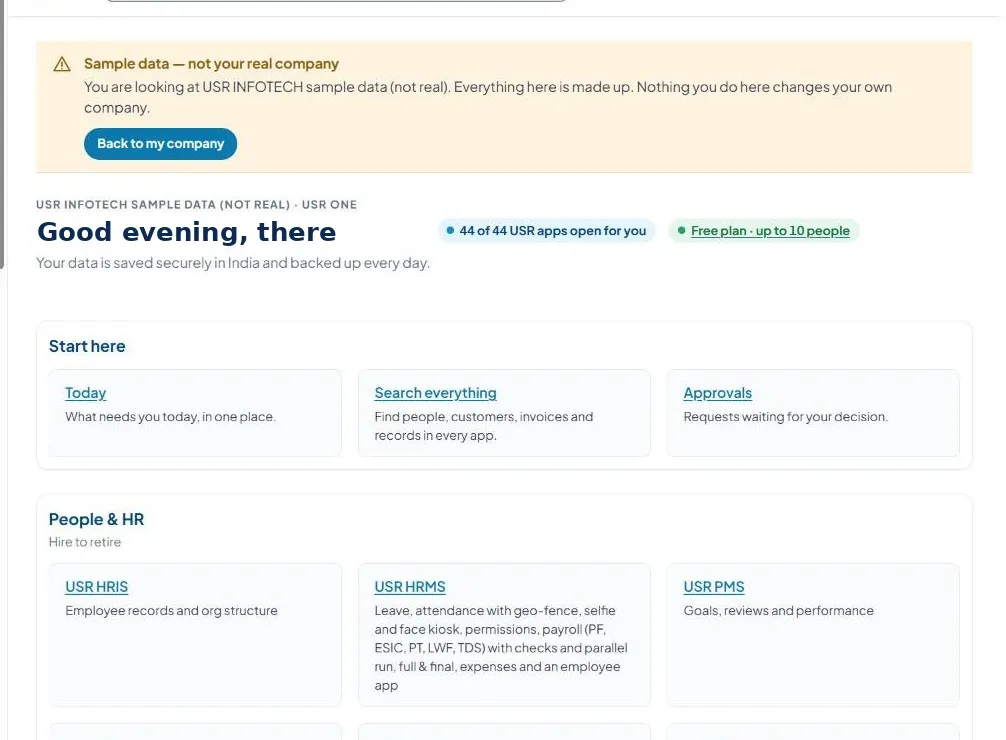
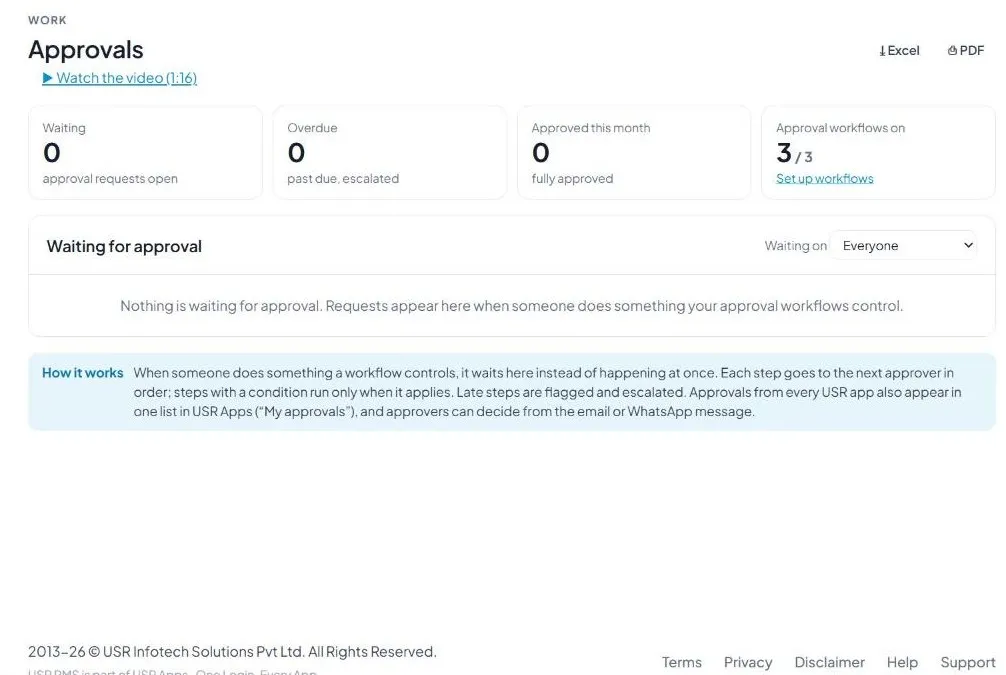
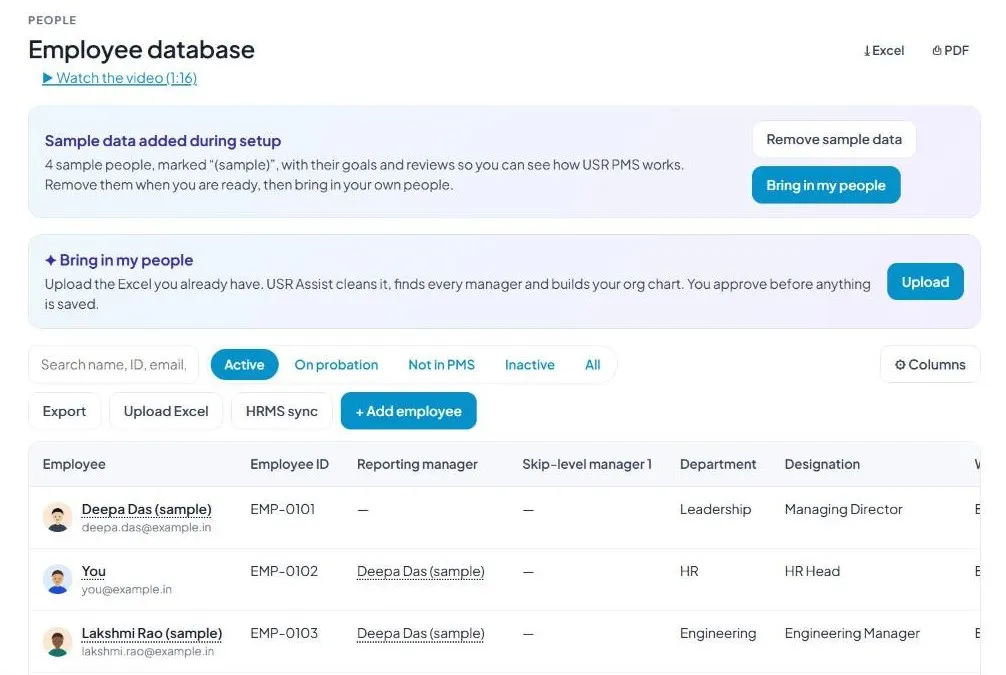
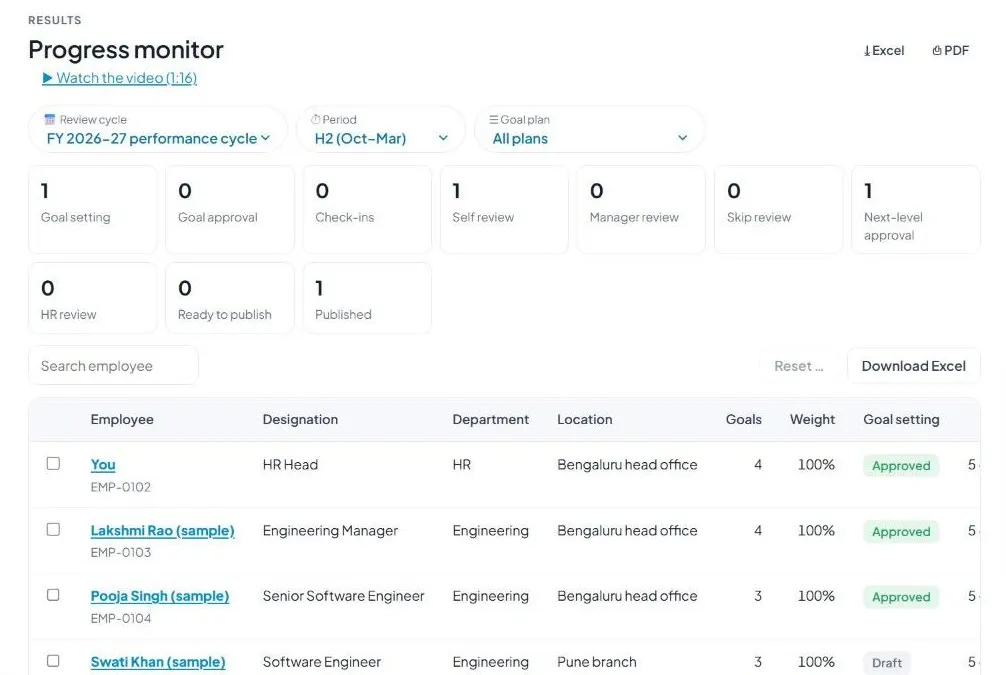
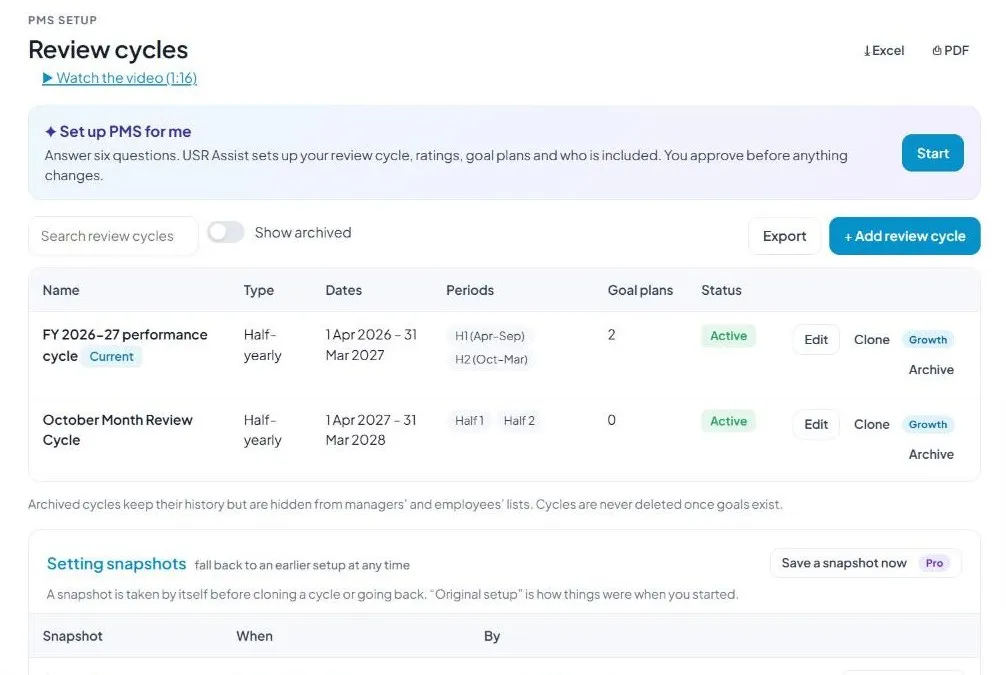
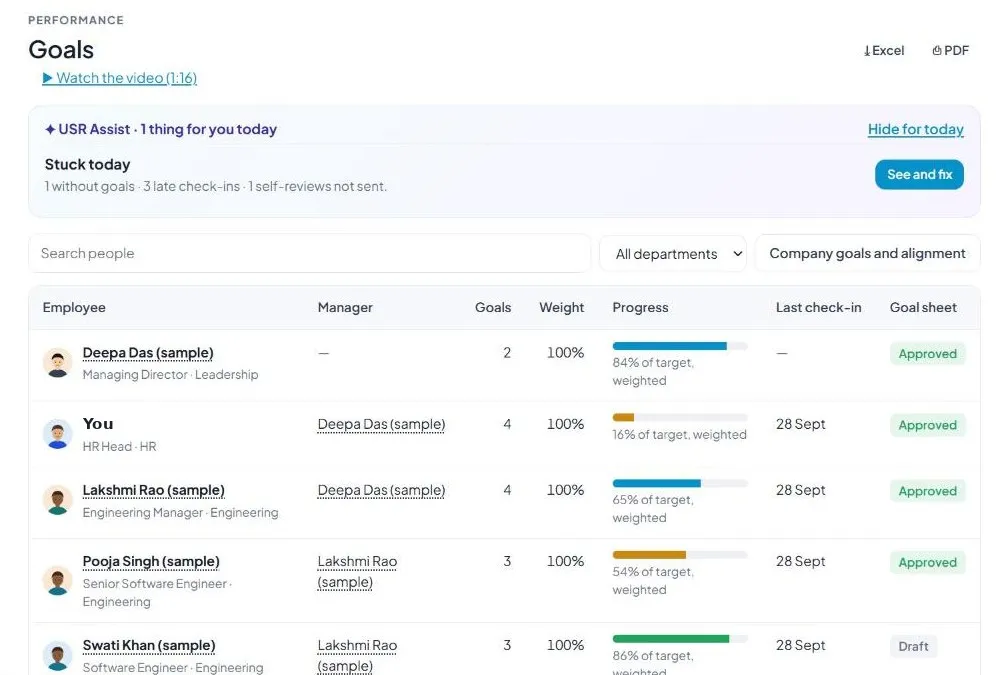
Sample company data. Screens can change as the app improves; the steps stay the same.
How USR helps you: help is self-service first
USR runs on AI agents. You get help in this order: this help page, then USR Assist inside the app, then support@usrinfo.tech. Most questions are answered in the first two.
Find your user type
Read only the chapter for your user type. Each chapter starts with what you do and ends with tips.
| I am a... | Read |
|---|---|
| Employee | Chapter 3: Employee guide. Learn: free L1 certificate |
| Manager or team leader | Chapter 4: Manager guide. Learn: free L1 certificate |
| HR or admin (company, group, HRBP, plant) | Chapters 5 and 6: HR and admin guide. Learn: free L2 certificate |
| Leader, CXO or business head | Chapter 7: Leader guide |
| Partner, reseller or CA firm | Chapter 13: Partners and resellers, and chapter 15: Academy and certification. Learn: free L3 certificate |
| New to performance management | Chapter 2: Key ideas in simple words |
A year in USR PMS
| Phase | What happens | Who does it |
|---|---|---|
| 1. Set up and launch | HR chooses the rating scale, goal plan and workflow, then launches the cycle | HR |
| 2. Goal setting | Goals are written or given, then approved | Everyone |
| 3. Check-ins | People update progress on their goals during the year | Employees, managers |
| 4. Reviews | Self review, manager review and, if used, skip-level review | Employees, managers |
| 5. Calibration and results | HR and leaders check ratings are fair, then share results | HR, leaders |
| 6. Growth plans | Development plans, promotions and succession | Everyone |
How to sign in
- Go to apps.usrinfo.tech.
- Type your work email or employee ID and click Next. Or choose Continue with Google or Continue with LinkedIn.
- Staff without email: choose Sign in with employee ID and PIN.
- You land on Home. Open People & HR in the left menu, then click USR PMS.
- TIP Tick Trust this browser for 30 days only on your own computer, never on a shared one.
- YOU SHOULD SEE The Home page. The left menu has Home, Today, Approvals and Search everything, then your apps in groups such as People & HR. The top bar has a search box, Ask USR Assist and Help.
Your profile menu
Click your initials at the top right. You can change four things here.
- Language: choose your language for the menus
- Look: Same as my device, Light or Dark
- Try as an employee and Try as a manager: see the app the way that role sees it
- Sign out
- TIP Use Try as an employee and Try as a manager to practise safely before you teach your team.
# 2. Key ideas in simple words
Six ideas are enough to use USR PMS. Each one is explained in one minute.
- CONCEPT Goal. What you will achieve. Good goals say what, how much and by when. Example: Close 40 service tickets by March.
- CONCEPT Check-in. A one-minute progress update on a goal. Small regular updates make the final review fair and easy.
- CONCEPT Rating. A score for how well a goal was met. People give ratings. AI never does.
- CONCEPT Workflow. The order of steps a review follows: goals, self review, manager review, optional skip-level review, HR publishes.
- CONCEPT Calibration. HR and leaders compare ratings across teams to make sure the same effort gets the same rating everywhere.
- CONCEPT Growth plan. What each person will learn next: IDP (individual development plan), CDP (career development plan), PIP (performance improvement plan).
What each role sees
| Role | What you do | What you see |
|---|---|---|
| Employee | Write or accept your goals. Update progress. Write your self review. Keep your development plan. | Your own goals and reviews. Your final rating only after HR shares results. |
| Manager | Approve goals. Follow check-ins. Review your team. Ask for 360 feedback. Hold 1:1 talks. | Your team |
| Skip-level manager | Approve or send back reviews after the manager has done theirs. | The people below you |
| HR (Group HR, Company HR) | Set up, launch and track the cycle. Calibrate. Share results. Run reports. | Everyone in the company |
| HRBP and Plant HR | Do HR work for one department (HRBP) or one location (Plant HR). | Only their department or location |
| 360 rater | Give feedback when someone asks you. | Only the request sent to you |
- WATCH OUT People only see what their role allows. If someone says they cannot see a screen, check their role first.
- TIP HR can use Viewing as to see the app the way a manager, skip-level manager or employee sees it.
# 3. Employee guide
Your job in USR PMS: know your goals, update progress, write your self review and plan your growth. It takes about ten minutes a month.
Step 1. Read your goals
- Sign in and open USR PMS.
- Open Goals.
- Read each goal: what, how much, by when and its weight.
- TIP Not sure what a goal means? Ask your manager early.
Step 2. Add or accept goals
- Add goals if your goal plan allows it.
- Check that the weights add up to 100%.
- Click Send for approval.
- WATCH OUT The goal sheet cannot be sent if the weights do not add up to 100%.
Step 3. Check in on your goals
- Open a goal and click Check-in.
- Enter the value you have reached so far.
- Say how confident you feel. Add a short note. Attach a file if it helps.
- Save.
- YOU SHOULD SEE The new value, the status chip and the history of earlier check-ins.
- TIP Check in every two weeks.
Step 4. Write your self review
- Open Reviews when HR starts the review step.
- Write a short note. Rate each goal. Add one real example.
- Click Finish step.
- TIP Use your check-in notes. They help you remember what you did.
Step 5. Give feedback and praise
- Answer 360 requests when colleagues ask. Open 360 appraisal and write your answer.
- Open Pulse to praise a colleague. Be specific and recent.
- Use the one-tap Mood check-in.
Step 6. Read your result and plan your growth
- After HR shares results, open Reviews to read your rating and your manager's comments.
- Open Development plans (in Full mode). Agree one or two actions with your manager.
- WATCH OUT You see your final rating only after HR shares results. If you disagree, raise a concern with your manager and give your reasons.
- TIP Prove what you know. The free USR Certified User (L1) exam is in chapter 15.
- OUR USP Your goals, reviews and growth plan live in one place with your USR One sign-in. Nothing is typed twice.
# 4. Manager guide
Your job in USR PMS: approve goals, follow your team's progress, hold regular talks, rate fairly and agree growth actions.
Step 1. Approve goals
- Open Approvals.
- Open one goal sheet and read it. You can approve, send back with a reason, or pass on.
- To approve many at once, select them and click Approve.
- TIP Open one by one when you want to read each. Use approve many when you trust the team.
Step 2. Follow progress
- Open Overview to see your team's progress. Open Pulse, then Mood, for mood.
- Open a person's goals to read their check-ins.
- If a goal is behind, talk to the person early.
Step 3. Hold 1:1 talks
- Open Pulse, then 1:1s.
- Write short notes and actions after each talk.
Step 4. Ask for 360 feedback
- Open 360 appraisal and click Request.
- Pick four to eight raters. Choose if answers are anonymous.
- Send. Remind people who have not answered.
Step 5. Review your team
- Open Reviews and pick a person from your team.
- Compare their self rating with yours.
- Rate each goal and write a comment with a real example.
- Click Finish step.
- WATCH OUT AI never sets a rating. You decide. You can use USR Assist to draft a comment, then edit it.
Step 6. Agree growth
- Open Development plans (in Full mode). Agree one or two actions with each person.
- Use the 9-box in Calibration to see who is high performer or future star.
- TIP Prove what you know. The free USR Certified User (L1) exam is in chapter 15.
- OUR USP USR Assist drafts, you decide. You save time without giving up the decision.
# 5. HR and admin guide: quick start in 10 steps
This chapter is for HR and admin users. Do the steps in this order. Each step has what to do, what you should see and a tip.
Step 1. Sign in
Sign in as shown in chapter 1, then open USR PMS.
Step 2. Try the sample company
- On USR Apps Home, click Open sample company.
- Look around. Open goals, reviews and reports. Nothing here is real.
- When you are done, click Back to my company.
- YOU SHOULD SEE An amber banner says Sample data: not your real company. It has a Back to my company button.
- TIP Spend ten minutes here before you set up. Try Viewing as to see each role.
Step 3. Click Set up PMS for me
- In your own company, click Set up PMS for me.
- USR Assist asks a few simple questions. Answer them.
- Check what USR Assist prepared.
- TIP You can change everything later. A first set-up does not have to be perfect.
Step 4. Add your people
- Your people come from USR HRIS.
- If you do not use USR HRIS yet, upload your people from an Excel file.
- Open the people list. Check that every person has a manager.
- WATCH OUT Reviews follow the manager you set for each person. Fix missing managers before you launch.
Step 5. Choose the rating scale
- Switch to Full (top bar). Open Rating scales.
- Pick the scale you already use, for example 5-point, A to E or 3-point.
- Check the labels. Save.
- TIP Pick the scale your people already know. A new scale needs new training.
Step 6. Make a goal plan
- Open AI goal assistant or start from your own goal list. Pick goals for each role.
- Open Goal plans (in Full mode), make a plan and add those goals.
- Choose a goal category for each goal, such as Financial or Customer. Mark a category required if everyone must use it.
- Check that the goal weights add up to 100%.
- TIP Start with three to five goals per person. Fewer goals are easier to follow.
Step 7. Pick a workflow
A workflow is the list of steps a review follows. You choose one of three ready workflows.
- 4 steps: goals, self review, manager review, publish
- 5 steps with skip-level review: the manager's manager also approves
- Goals only: set and follow goals without a review
- TIP Not sure? Start with the 4-step workflow. You can add skip-level review next cycle.
Step 8. Map people to the cycle
The wizard connects the goal plan, the cycle and the workflow to the right people. It has five steps and shows a live preview.
- Open Map review cycles (in Full mode) and start.
- Answer what each step asks. Use Next to move on.
- In the people step, click Pick people. Choose by department, designation, location, status, team or role, or pick named people.
- Check the live preview. It shows how many people are included. Finish.
- WATCH OUT Check the number in the preview. If it looks too high or too low, go back and change the choice.
Step 9. Launch the cycle
- On Overview, click Start on the Launch the cycle card.
- Confirm.
- YOU SHOULD SEE The cycle is running. People can start working on their goals.
Step 10. Watch progress
- Open Progress monitor under RESULTS.
- See how many people are at each stage.
- Open a person's name to see where they are. Remind people who are behind.
- TIP Check progress once a week. A short reminder early saves a long wait later.
Sample data in a real company? Click Remove sample data. Only HR can do this. Nothing is removed without your click.
# 6. HR and admin guide: features step by step
1 Review cycles and periods
What it is: the time you review, for example one year. You can split it into monthly, quarterly, half-yearly or yearly periods.
Who uses it: HR.
- Open Review cycles.
- Create a cycle. Pick its periods. You can change the period dates.
- Save.
- YOU SHOULD SEE The cycle appears in the cycle picker at the top. Pages show the data of the cycle you picked.
- TIP You can run more than one cycle. Always check the cycle picker so you look at the right one.
- STATUS Ready. Running several cycles at once for different groups is being completed.
2 Goals: methods, plans and library
What it is: the goals people work on. You can use OKR, KRA/KPI, SMART or frontline goals.
HR steps
- Open AI goal assistant or use your own list. Choose goals that fit the role.
- Open Goal plans. Make a plan and add the goals.
- Set goal categories. Mark any as required.
- Choose the goal type: Normal, Target, Stretch or Deadline. Enter the start, target and stretch values. The rating is worked out from the percentage achieved on your scale.
- To add many goals at once, download the Excel template. Fill it. Upload it. Rows with errors are shown so you can fix them.
Employee steps
- Open Goals.
- Read the goals given to you. Add goals if your plan allows it.
- Send your goals for approval.
- YOU SHOULD SEE Each goal shows its weight, target and a status chip, for example On track.
- TIP A good goal says what, how much and by when. Example: Close 40 service tickets by March.
- WATCH OUT Goal weights must add up to 100% or the goal sheet cannot be sent.
- STATUS Ready. The goal library grows over time. Fuller AI help for writing goals is being completed.
3 Cascading goals and the org view
What it is: company goals flow down to departments, teams and people, so everyone sees how their work connects.
- HR opens OKRs & cascade and picks a view: mind map, org tree, cards or alignment tree.
- Assign a goal to a whole department in one action, or use the Map review cycles.
- Open Overview and scroll to the balanced scorecard (Strategy map) to see goals in four groups.
- YOU SHOULD SEE Each goal shows the goal above it and the goals below it.
- STATUS Ready.
4 Workflows, approvals and publishing
What it is: the steps a review follows. Goals, then self review, then manager review, then optional skip-level review, then HR publishes.
- HR picks one of the three ready workflows for the group.
- At each step, the person clicks Finish step and can add a comment.
- Managers and skip-level managers open Approvals. They can approve, send back with a reason, pass on, or approve many at once.
- HR opens Result publication and approves results in a batch.
- YOU SHOULD SEE Each person's current step and workflow history.
- TIP Use approve many at once when you trust the team. Open one by one when you want to read each.
- STATUS Ready. Deadlines per step with missed-deadline tracking, and a formal appeal step, are being completed.
5 Check-ins
What it is: a quick progress update on a goal. It takes one minute.
- Open a goal in Goals.
- Click Check-in. Enter the actual value so far.
- Say how confident you feel. Add a short note. Attach a file if it helps.
- Save.
- YOU SHOULD SEE The new value, the status chip and the history of earlier check-ins.
- TIP Check in every two weeks. Small regular updates make the final review easy and fair.
- STATUS Ready. A separate manager value on a check-in is being completed.
6 Reviews: self and manager
- Employee: open your review. Write a note and rate each goal and competency. Click Finish step.
- Manager: open Reviews. Pick a person from your team. Filter by stage or department if you need to.
- Compare the self rating with yours. Rate. Add comments. Click Finish step.
- YOU SHOULD SEE The gap between self rating and manager rating, shown in Gap analysis.
- TIP Write comments with an example, for example what happened and what result it had. Short and specific is better than long.
- WATCH OUT AI never sets a rating. People decide ratings.
- STATUS Ready. More than one reviewer can rate a goal, each with a weight. 360 feedback counts in the score.
7 360 feedback
What it is: feedback from peers, direct reports and others.
- Open 360 appraisal and click Request.
- Pick the raters. You can include people outside your team if your company allows it.
- Choose if answers are anonymous.
- Send. Use reminders for people who have not answered.
- YOU SHOULD SEE Results by rater group, with blind spots and hidden strengths.
- TIP Ask four to eight people. Too few makes it easy to guess who said what.
- STATUS Ready. A written AI summary of themes is being completed.
8 Calibration
What it is: HR and leaders check that ratings are fair across the company.
- Open Calibration.
- Compare the bell curve with your target. Click Fit to the curve if you want. Click Undo if you change your mind.
- Open the 9-box to see performance against potential.
- When you are happy, click Send final ratings for approval.
- YOU SHOULD SEE The curve and the 9-box move as you change ratings.
- TIP Calibrate with the team leaders in the room. Talk about the examples behind a rating, not only the number.
- WATCH OUT Every change keeps a note and who made it. Write a clear note.
- STATUS Ready.
9 The 9-box: performance and potential
- The 9-box in Calibration shows people by performance and potential (Rough diamond, Future star, Star, Core player, High performer and more). Use Rename boxes to use your own words.
- STATUS Ready.
10 Development and probation
- Open Development plans (in Full mode).
- Choose IDP (individual development plan), CDP (career development plan) or PIP (performance improvement plan).
- Add actions with due dates and course links. A PIP follows the approval rule your company set.
- Open Probation for 30, 60 and 90 day reviews and the confirmation decision.
- YOU SHOULD SEE Actions with status, for example Planned or Done.
- TIP Pick one or two development actions per person. People finish a short list.
- STATUS Ready.
11 Pulse: conversations, feedback and recognition
- Open Pulse.
- Feed shows praise, wins and feedback. Add praise for a colleague, or praise from a goal.
- 1:1s keep notes and actions from talks with your manager.
- Mood is a one-tap check-in. HR and managers see the mood and eNPS trend.
- TIP Praise something specific and recent. It means more than a general thank you.
- STATUS Ready.
12 Dashboards and reports
| Where | What it shows | Who |
|---|---|---|
| Overview | Your cycle at a glance, setup steps and company trends | Everyone |
| Progress monitor | Stage counts per person | HR |
| Overall PMS report | Scores, ratings and stages for everyone, with Excel download | HR |
| Reports | Query builder (choose data, group, filter, columns, Download CSV) and Ready MIS reports: Goal completion by department, Ratings by department, Ratings by manager, Review completion by grade, Recognition by department | HR, managers |
- TIP Each number comes from the cycle you picked. Check the cycle picker before you share a report.
- STATUS Ready. A server-made PDF appraisal for each person is being completed.
13 USR Assist and AI help
What it does today: suggests goals (SMART, KPI, OKR, IDP, CDP, PIP), drafts review comments, pre-fills ratings from goal results, shows a daily tip, and helps with Set up PMS for me and Launch the cycle.
What it never does: set a rating or make a decision. You always read, edit and own the final text.
- TIP Treat AI text as a first draft. Add the real example from your team.
- STATUS Ready. Fuller AI drafting and early-warning insights are being completed.
14 Setup pages in Full mode
Click Full at the top to show more setup pages in the left menu. Click Simple to go back.
| Page | What it is for | Who |
|---|---|---|
| Rating scales | Rating ranges and labels | HR |
| Goal categories | Groups of goals, for example Financial or Customer | HR |
| Goal plans | A set of goals for a group of people | HR |
| Review cycles and Review periods | The time you review and its parts | HR |
| Map review cycles | Connect plan, cycle and workflow to people | HR |
| Workflows | The steps a review follows | HR |
| Frontline staff and Frontline reviews | Reviews for people without email | HR |
| Probation, Development plans, Check-ins | Probation reviews, growth plans and goal updates | HR, managers |
| Language (profile menu) | Menus in your language | Everyone |
- TIP In Full mode the menu shows more setup pages. Simple mode keeps only what most people need.
- STATUS Ready. Screens in more languages are being completed.
# 7. Leader guide
Your job in USR PMS: see how the company is doing, check fairness, and decide on people and growth. You do not need to set anything up.
| What you want to know | Where to look | What you see |
|---|---|---|
| Is the cycle on track? | Overview, Progress monitor | Number of people at each stage |
| How are teams doing? | Overview, Overall PMS report | Scores by team and department |
| Are ratings fair? | Calibration | Bell curve and 9-box |
| Who are our future leaders? | Calibration: 9-box | Performance against potential: Star, Future star, High performer and more |
| How engaged are people? | Pulse: Mood | Mood and eNPS trend |
| Can I get a report? | Reports, Overall PMS report | Ready MIS reports and Excel download |
- Open Overview for the cycle at a glance.
- Join the calibration talk. Look at the bell curve and 9-box.
- Ask HR to send the final ratings for approval when you are happy.
- Use the 9-box to see your stars and future stars.
- TIP In calibration, talk about the example behind a rating, not only the number.
- OUR USP Goals, ratings, mood and growth in one view. As more USR Apps are added to your USR One account, results can flow on to Compensation and Rewards without re-keying.
# 8. One-page cheat sheets
One page each. Print it or keep it open.
Employee: your year in six steps
| # | What to do | Where |
|---|---|---|
| 1 | Read your goals. Add goals if your plan allows it. Send for approval. | Goals |
| 2 | Update progress every two weeks. | Goal, Check-in |
| 3 | Write your self review at review time. | Reviews |
| 4 | Answer feedback requests when colleagues ask. | 360 |
| 5 | Read your result after HR shares it. | Goals |
| 6 | Make a development plan with your manager. | Development plans |
Manager: your year in six steps
| # | What to do | Where |
|---|---|---|
| 1 | Approve your team's goals or send them back with a reason. | Approvals |
| 2 | Read check-ins. Talk when something is behind. | Reviews |
| 3 | Hold regular 1:1 talks and write short notes. | Pulse, 1:1s |
| 4 | Ask for 360 feedback for your people. | 360 |
| 5 | Rate your team and write comments with examples. | Reviews |
| 6 | Agree a development action with each person. | Development plans |
HR: your year in six steps
| # | What to do | Where |
|---|---|---|
| 1 | Set up the cycle: scale, goal plan, workflow, mapping. Launch. | Quick start, chapter 5 |
| 2 | Watch progress. Remind people who are behind. | Progress monitor |
| 3 | Run mid-year and year-end steps for each group. | Review cycles, Workflows |
| 4 | Calibrate ratings with the leaders. | Calibration |
| 5 | Publish results. | Result publication |
| 6 | Download the reports. Plan growth and succession. | Overall PMS report, Reports |
# 9. Tips for a smooth cycle
For HR
- Try the sample company first. Ten minutes saves hours.
- Keep the first cycle simple: one scale, one workflow, a few goals.
- Tell people the dates before you launch. A short email is enough.
- Check the preview number in Map review cycles every time.
- Check Progress monitor once a week.
For managers
- Talk to each person every month, even for ten minutes.
- Write comments with a real example.
- Do not leave approvals for the last day.
- Praise in Pulse. It takes a minute and people remember it.
For employees
- Check in every two weeks. Do not wait for review time.
- Write your self review from your check-ins. Your own notes help you remember.
- Ask your manager early if a goal is not clear.
- If you disagree with a rating, raise it as a concern. Stay calm and give your reasons.
# 10. If something is not working
| What you see | Why it happens | What to do |
|---|---|---|
| I cannot see my rating | HR has not shared results yet. Ratings stay hidden until then. | Wait for HR to share results. Ask HR for the date. |
| My goal sheet will not send | Goal weights do not add up to 100%. | Open the goals. Change the weights to total 100%. Send again. |
| I do not see a menu item | Your role does not allow it. | Ask HR to check your role. |
| A person is missing from the cycle | They were not picked in the Map review cycles. | HR opens Map review cycles. In Pick people, add the person. |
| I see sample people in my real company | Sample data was not removed. | HR clicks Remove sample data. |
| Numbers look wrong | You may be looking at another cycle. | Check the cycle picker at the top. |
| Someone else's name shows for me | An old sign-in is still open. | Sign out. Sign in again. If it stays, write to support@usrinfo.tech. |
| The page looks stuck | The page may be slow or old. | Refresh. If it stays, write to support@usrinfo.tech with a screenshot. |
| No reminder email came | Automatic reminder emails are being completed. | HR can remind people directly. |
# 11. Questions people ask
Questions are grouped by topic. Employees can start with Goals and Reviews. Managers: Reviews and Reminders. HR: Getting started and Reports. Partners: Language and help.
Getting started
Do I need to install anything? No. USR PMS works in your web browser, and it works on a phone.
How do I sign in? Go to apps.usrinfo.tech. Use Google, your work email, or employee ID and PIN.
Can I try it without risk? Yes. On USR Apps Home, click Open sample company. Nothing real is changed.
How long does set-up take? About 15 minutes with the quick start in chapter 5.
Goals
How many goals should one person have? Three to five is easy to follow.
Why can't I send my goals? The weights must add up to 100%.
Can I upload goals from Excel? Yes. Download the template, fill it, upload it. Rows with errors are shown.
Which goal method should we use? Use the one your teams already know: OKR, KRA/KPI, SMART or frontline.
Reviews and ratings
Who sees my rating? You, your manager and HR. You see your final rating only after HR shares results.
What if I disagree with my rating? Raise a concern with the category Disagree with my rating. A formal appeal step is being completed.
Can one goal have more than one reviewer? Yes. Each reviewer can have a weight.
Is 360 feedback anonymous? You choose when you send the request.
Can I change a rating after calibration? HR can change ratings in Calibration. Every change keeps a note and who made it.
Reminders and reports
Does USR PMS send reminders? Automatic reminder emails are being completed. For now, HR can remind people directly.
Can I download results? Yes. HR and managers can download Excel. You can also save a report as PDF.
Privacy and AI
Who can see my data? Only people your company allows, by role. Your company's data is kept separate from other companies.
Does AI decide my rating? No. AI never sets a rating. It only suggests drafts. People decide.
Does the sample company use real data? No. It is made up.
Language and help
Can I use my own language? Menus can be shown in your language. Screens stay in English for now.
Who do I ask for help? Write to support@usrinfo.tech. Tell us your company name, the page and what you did.
# 12. Glossary: words you will see
| Word | Meaning |
|---|---|
| Cycle | The time period you review, for example one year |
| Period | A part of a cycle, for example a quarter |
| Goal plan | A set of goals for a group of people |
| Goal category | A group of goals, for example Financial or Customer |
| KRA / KPI | Key result area and key performance indicator: what you are measured on |
| OKR | Objective and key results: a big goal broken into measurable results |
| SMART | A goal that is specific, measurable, achievable, relevant and time-bound |
| Check-in | A short progress update on a goal |
| Workflow | The steps a review follows |
| Mapping | Connecting a goal plan, cycle and workflow to people |
| Skip-level manager | Your manager's manager |
| 360 feedback | Feedback from peers, reports and others |
| Calibration | A fairness check of ratings across the company |
| Bell curve | A chart of how many people got each rating |
| 9-box | A grid that shows performance against potential |
| IDP / CDP / PIP | Individual development plan, career development plan, performance improvement plan |
| eNPS | A simple score of how likely people are to recommend working here |
| HRBP | HR business partner: HR for one department |
| Plant HR | HR for one location |
| USR Assist | The AI helper inside USR Apps. It suggests. People decide. |
| USR One | The business app for small and mid-size companies: one record, one sign-in, five suites |
| USR Apps | The family of apps and tools you use with one sign-in and one bill |
| Suite | A group of apps for one department: People, Sales and Marketing, Service, Finance, Operations |
| One sign-in (SSO) | Sign in once and open every USR app |
| Sample company | A made-up company to practise in. Nothing in it is real. |
| Viewing as | HR can see the app the way another role sees it |
| Skills certification | The free USR Certification Programme, levels L1, L2 and L3 |
| USP | What makes USR different: one sign-in, one record, one bill, with AI in every app |
USR PMS shares one record with these apps
No retyping between apps: data entered once flows to the next app, on the same login.
USR PMS is part of USR One. People Suite from ₹39 ($1) per employee a month, or every app in USR One Complete. Free for up to 10 people.
See USR One