
USR HRMS help
USR HRMS handles leave, attendance and payroll for your whole company, with Indian rules built in. Employees ask for leave and see payslips; managers approve; HR runs the month.
See the screens
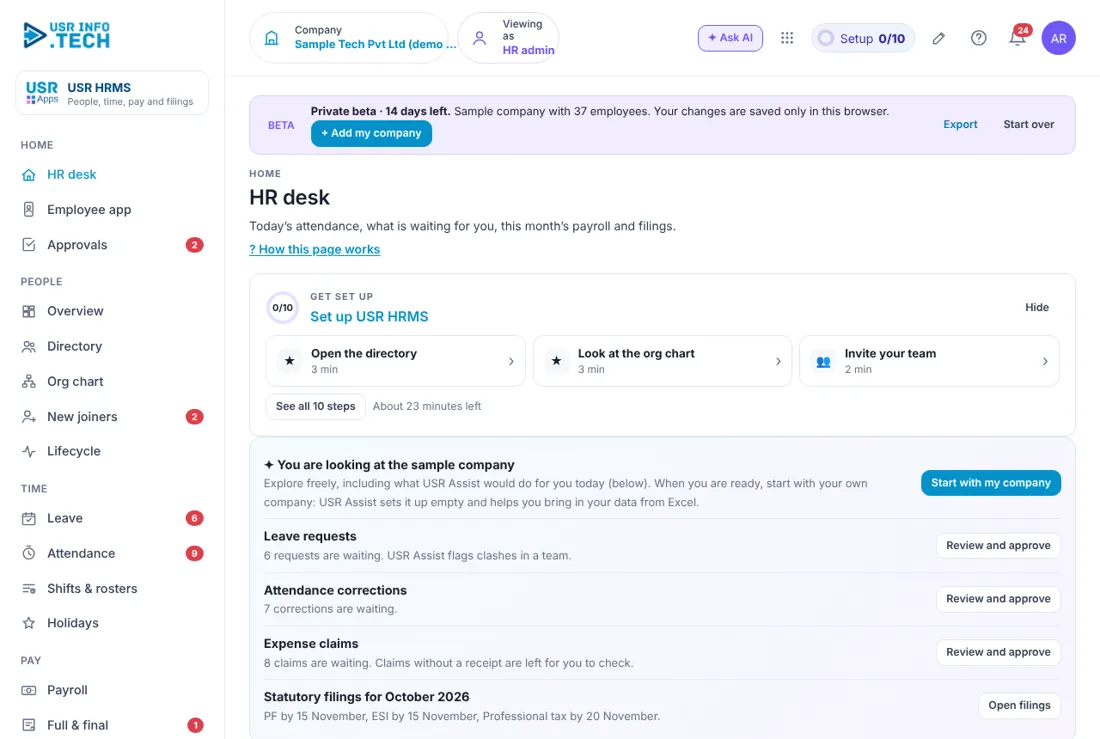
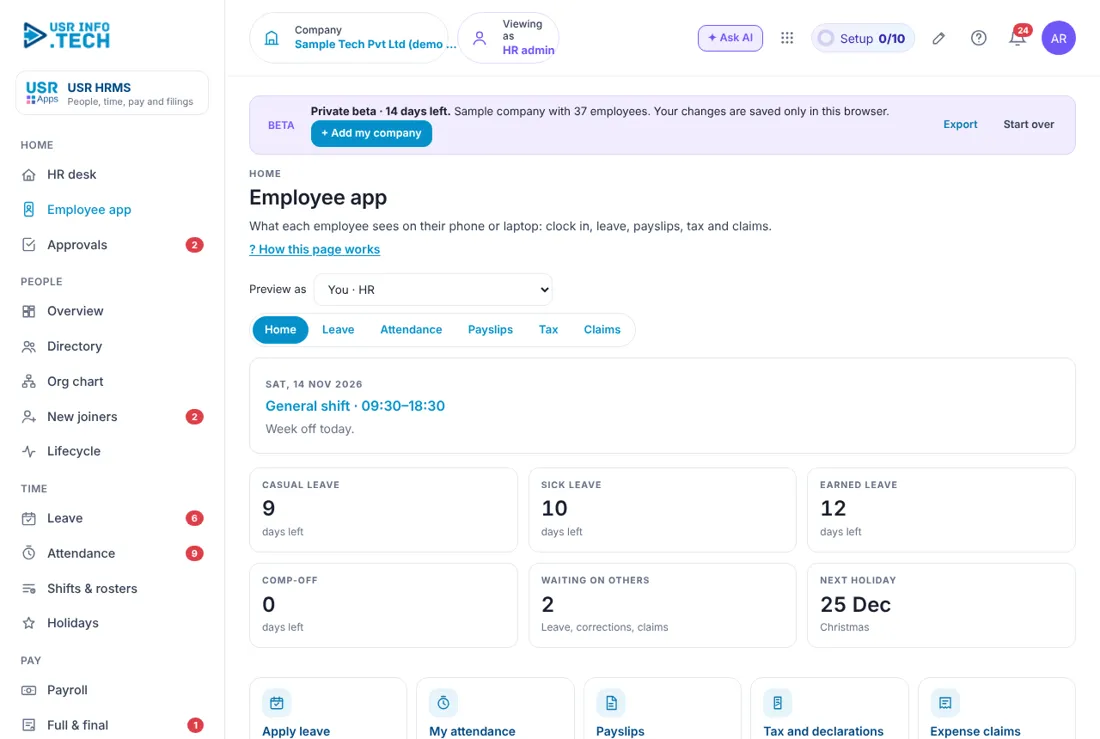
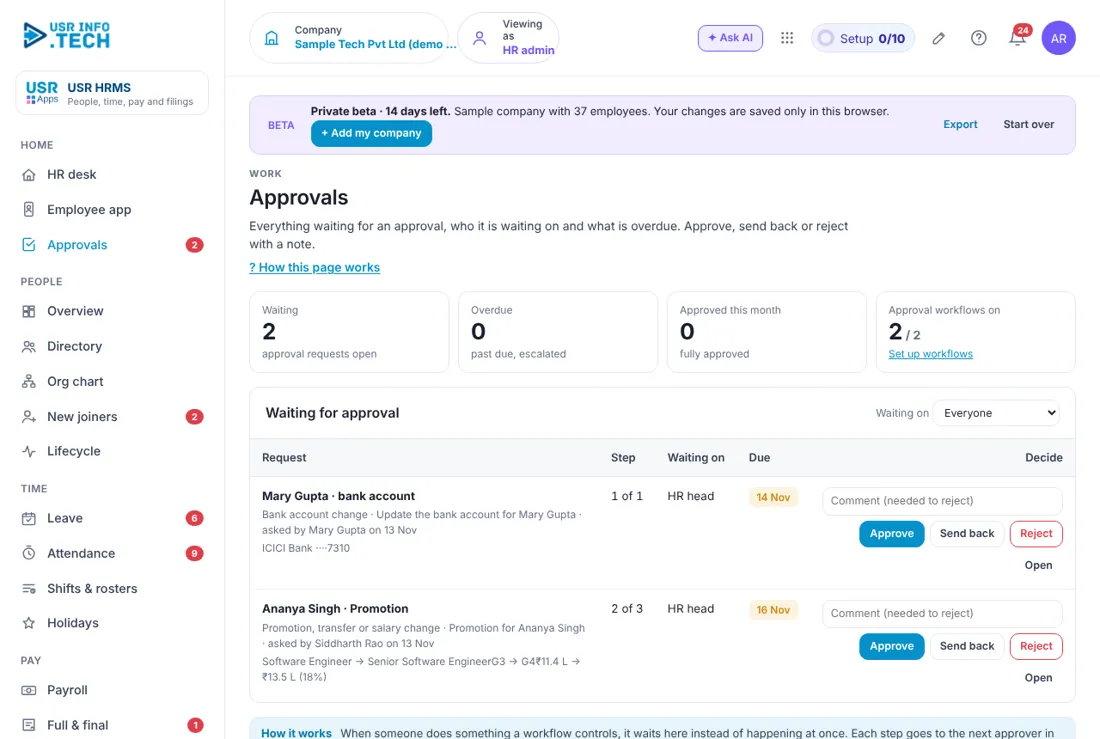
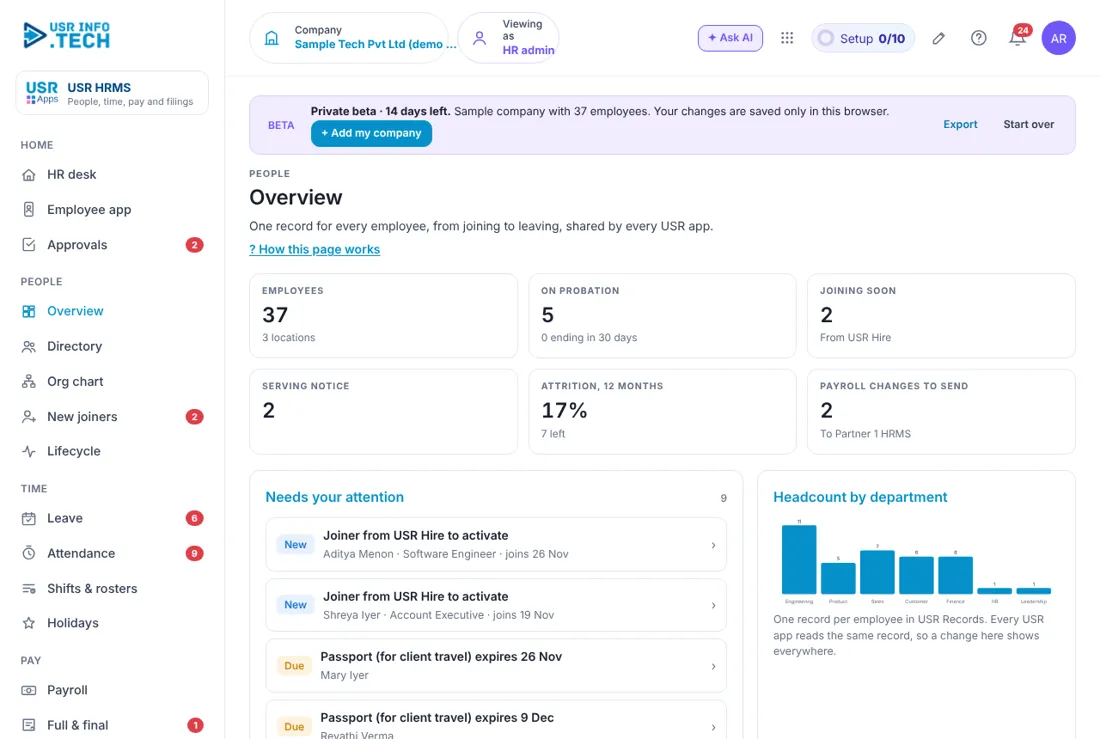
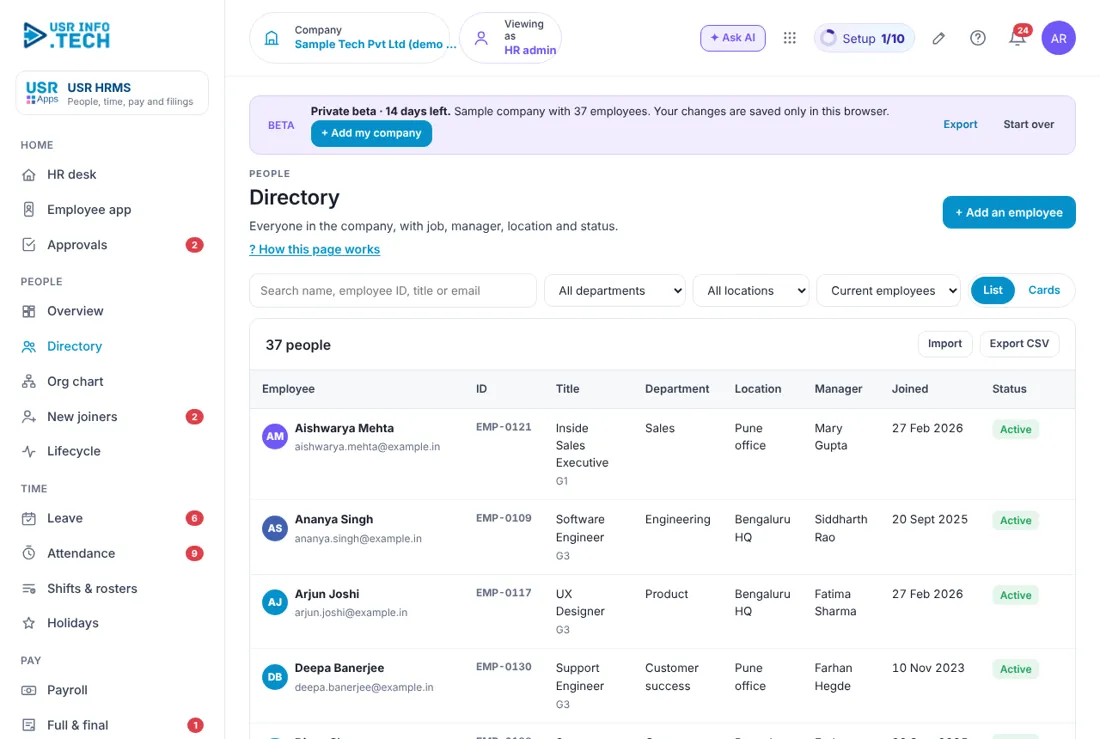
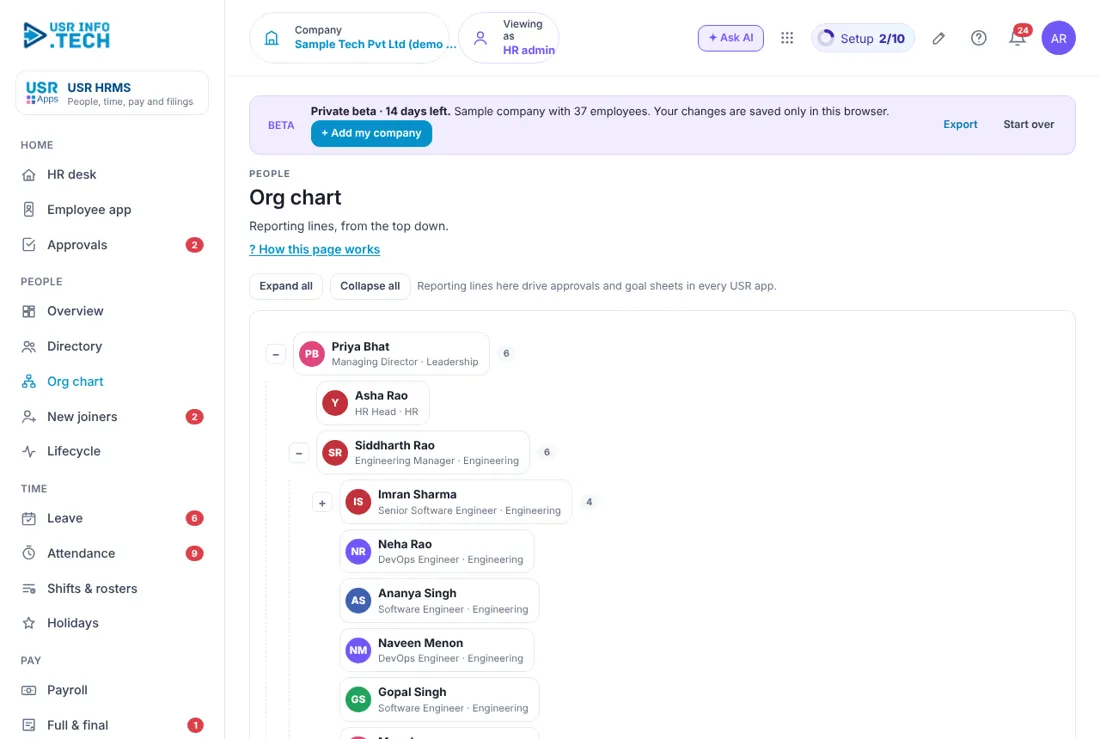
Sample company data. Screens can change as the app improves; the steps stay the same.
Welcome to USR HRMS
USR HRMS handles leave, attendance and payroll for your whole company, with Indian rules built in. Employees ask for leave and see payslips; managers approve; HR runs the month.
- Leave: usual Indian leave types (casual, sick, earned and more), requests and approvals
- Attendance with geo-fence, selfie and face kiosk, and permissions (being completed in the app menu)
- Payroll with PF, ESIC, PT, LWF and TDS, checks and a parallel run against your current payroll
- Full and final settlement, expenses and the employee app (being completed)
- Move to USR: bring your employee list, salary structures and earnings so far from Excel
STATUS: Payroll pages are being finalised. this help page is updated (target: after 10 Nov 2026) when they are final.
Key ideas in simple words
| Idea | What it means |
|---|---|
| Leave type | A kind of leave, such as casual, sick or earned leave. |
| Leave request | An employee's ask for leave with dates and a reason. It waits under To approve. |
| Payroll run | One month's salary calculation. It starts as Draft. |
| Payslip | The monthly statement: gross pay, deductions and net pay. |
| Statutory deductions | PF, ESIC, PT (professional tax), LWF (labour welfare fund) and TDS. |
| Parallel run | Running USR payroll next to your current payroll for a month to compare. |
| Full and final | The last settlement when a person leaves. |
USR HRMS by user type
Employee
#### Ask for leave
- Open USR HRMS > Leave.
- Choose the leave type (for example Casual leave), the dates and write a short reason.
- Send the request. Your manager or HR gets it under To approve.
#### See my payslips
- Open USR HRMS > Payroll.
- Click the tab My payslips.
- Each month shows gross pay, deductions and net pay.
YOU SHOULD SEE: Months appear once the salary is paid. Before that you see "No payslips yet".
Manager
#### Approve or reject leave
- Open USR HRMS > Leave. The tab To approve shows a red number.
- Read the card: name, dates, designation, reason, leave type and days.
- Click Approve or Reject.
WATCH OUT: Check team cover before approving. Use Everyone to see all requests.
HR or admin
#### Set up in three steps
- Open USR HRMS > Overview. The Start here box shows three steps with ticks.
- Add your employees in USR HRIS, one by one or from Excel.
- Set your leave types. Start with the usual Indian types; change them later.
- Set payroll basics. Salary structures and your first monthly payroll run.
#### Start a payroll run
- Open USR HRMS > Payroll and click Start payroll.
- The month appears as a run, first as Draft.
- Check the run, then complete it. Employees see payslips after the salary is paid.
WATCH OUT: Only HR sees the Payroll page in full.
#### Compare a month with your current payroll
Open Compare with your payroll, choose the month, bring in the numbers from your current product, and see the differences before you switch.
#### Move to USR from your current payroll
- Open Move to USR.
- Move the files in this order: 1 Employee list, 2 Salary structures, 3 Earnings and tax deducted so far this year.
- For each file, download the USR template (Excel or CSV) or use your current product's export files.
- Choose your file (.xlsx, .xlsm or CSV, up to 5 MB). You see everything before anything is kept.
WATCH OUT: A file is moved in completely or not at all. USR reads only cell values: macros are never run or kept.
Cheat sheet
| I want to... | Do this |
|---|---|
| Ask for leave | Leave > new request |
| Approve leave | Leave > To approve > Approve |
| See all leave | Leave > Everyone |
| Start a month | Payroll > Start payroll |
| See my payslip | Payroll > My payslips |
| Switch from another payroll | Move to USR, then Compare with your payroll |
Tips
- Add people in USR HRIS first. Leave and payroll use the same list.
- Run payroll in parallel for a month before you switch.
- Move the three files in the order shown: employee list first.
- Answer leave requests quickly. A red number on To approve means someone is waiting.
If something is not working
| Problem | What to do |
|---|---|
| My payslips are empty | Payslips appear after your first salary is paid. |
| Leave does not show my balance | You may not be on the employee list. Click Add me to the employee list or ask HR. |
| A file is rejected in Move to USR | Files move in completely or not at all. Fix the errors shown and upload again. |
Questions and answers
- Is attendance included? Attendance with geo-fence, selfie and face kiosk is part of USR HRMS and is being completed. Pages appear in the menu when ready.
- Who can see payroll? Only HR sees the Payroll page in full. Employees see their own payslips.
- Does USR HRMS handle PF, ESIC, PT, LWF and TDS? Yes, Indian statutory rules are built in.
Glossary
PF: Provident Fund. ESIC: Employees' State Insurance. PT: Professional Tax. LWF: Labour Welfare Fund. TDS: tax deducted at source. Gross pay: pay before deductions. Net pay: pay after deductions.
Powered by USR Apps. (c) 2026 USR INFOTECH Solutions Pvt Ltd.
USR HRMS shares one record with these apps
No retyping between apps: data entered once flows to the next app, on the same login.
USR HRMS is part of USR One. People Suite from ₹39 ($1) per employee a month, or every app in USR One Complete. Free for up to 10 people.
See USR One